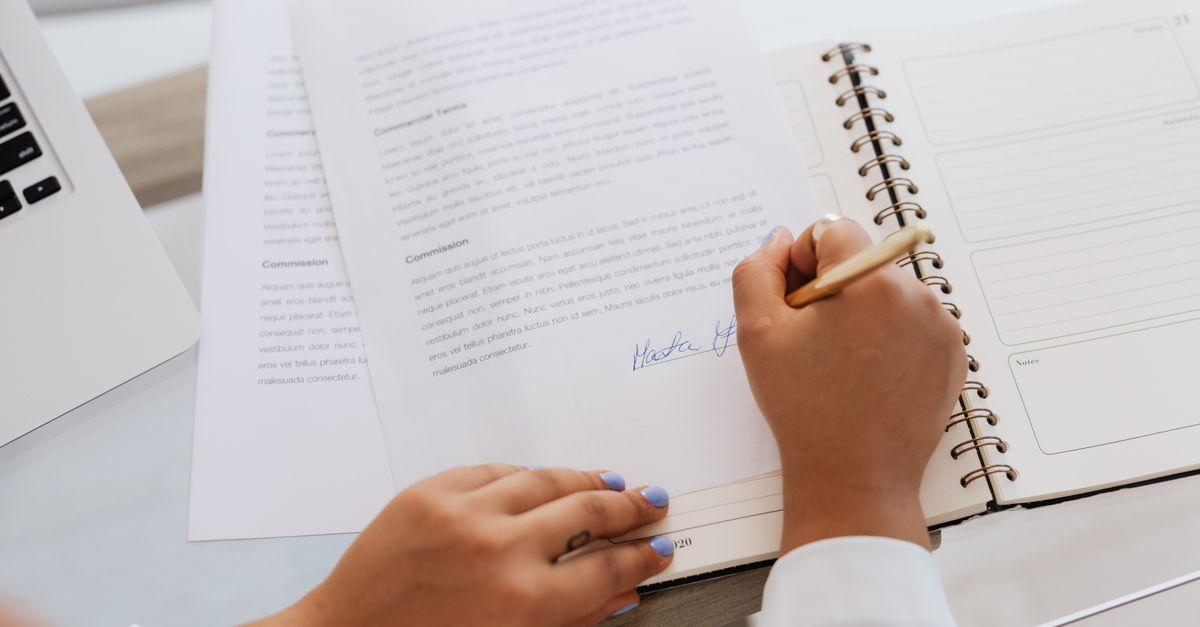
What it does: The Signature Maker lets you quickly draw a handwritten signature and download it as a transparent PNG, ready for documents, emails, or branding.
Key features:
- Text‑input: type your name to see a stylized preview.
- Copy: one‑click copy of the generated PNG URL.
- Preview: live preview while you draw.
Basic usage steps: 1. Open the tool and choose “Draw” or “Text‑input”. 2. If drawing, use your finger or stylus to sign on the canvas. 3. If using text‑input, type your name, select a font style, and click “Generate”. 4. Review the preview; adjust thickness or size if needed. 5. Click “Download PNG” to save a transparent image. 6. (Optional) Click “Copy link” to copy the image URL for web use.
Example: John types “John Doe” → selects a cursive font → preview shows a smooth signature → he downloads “john‑doe.png” and inserts it into his email signature.
Essential notes:
- The PNG is 300 dpi and fully transparent, suitable for any background.
- Keep the signature size between 200‑400 px wide for optimal readability.
- The tool works offline after the page loads; no data is stored on our servers.
- Use a stylus for smoother lines on mobile devices.
Ready to personalize your documents? Create Your Signature Now
FAQ
Can I use the generated signature on legal documents?
Yes, the transparent PNG can be placed in PDFs or Word files, but verify local regulations regarding electronic signatures.
Is there a limit to how many signatures I can create?
No, you can create unlimited signatures; each download is independent.
Does the tool work on iOS and Android browsers?
The Signature Maker is fully responsive and works on modern mobile browsers for both iOS and Android.
How do I change the background color of the preview?
The preview background is always white for visibility, but the downloaded PNG remains transparent regardless of the preview color.